One sidebar for everything
The running terminals sit at the top of the sidebar, with your saved commands below them.
Termi is a terminal app for macOS and Linux with a warm dark theme, saved commands that open several terminals side by side, and auto-start.
Version 0.1.3 for macOS (Apple silicon and Intel) and x64 Linux (deb and AppImage).
Free and open source under the MIT license.

Features
The terminals you have running and the commands you run every day live in one sidebar, and Termi keeps out of the shell's way.
The running terminals sit at the top of the sidebar, with your saved commands below them.
A saved command can open several terminals side by side, in a layout Termi remembers for that command.
Give a saved command the bolt and it starts as soon as Termi opens.
Select text in a terminal to copy it. A double-click copies a word, and a triple-click a line.
The sidebar footer shows CPU and memory use, and download and upload speed, checked every 1.5 seconds and paused while the window is minimized.
Termi reopens at the same window position and size.
The system's own controls: the traffic lights on macOS, and minimize, maximize and close on the right on Linux.
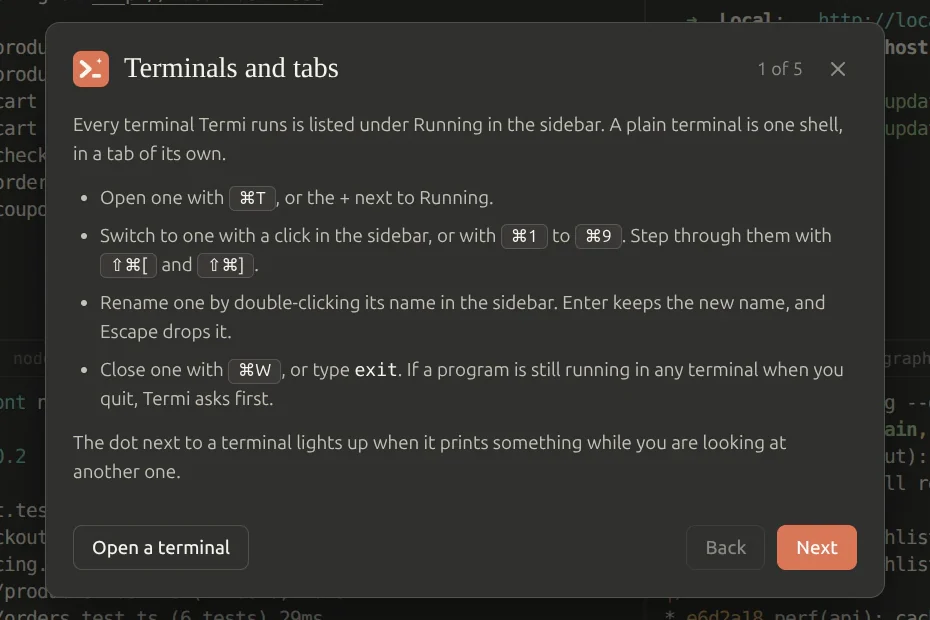
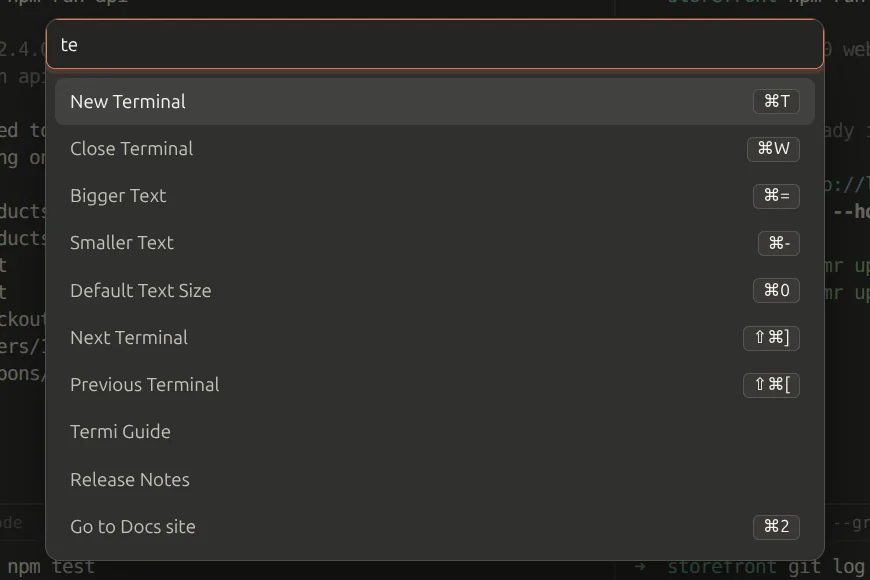
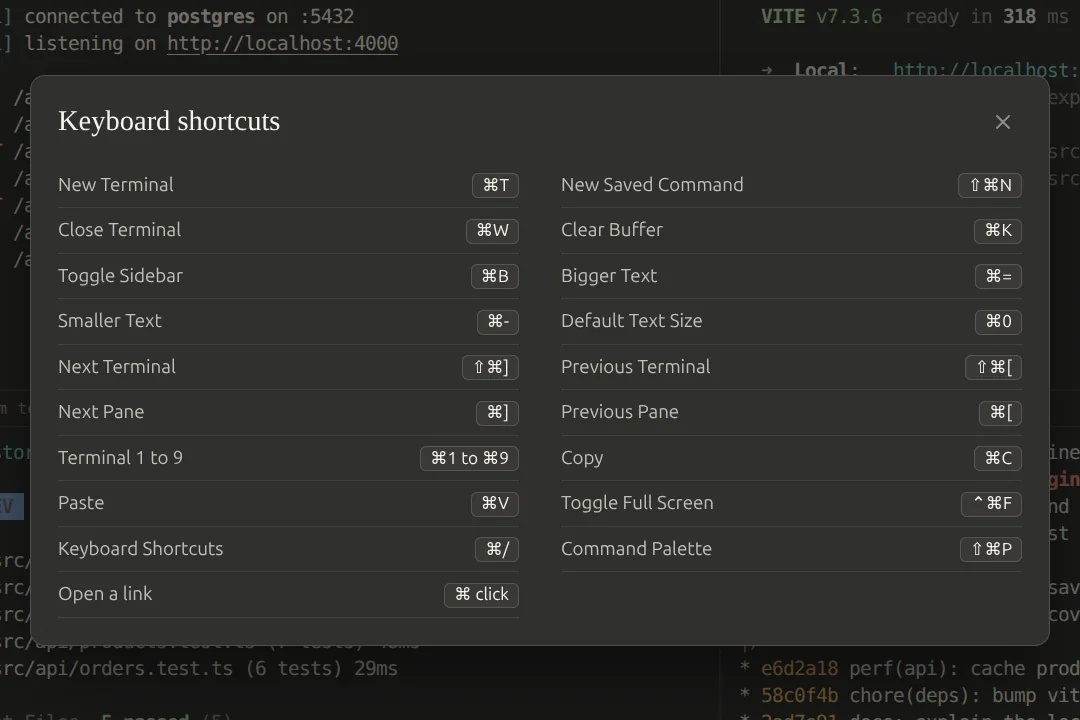
A five-page guide on first launch, a keyboard shortcut sheet and a command palette that finds any action or running terminal by name.
Split terminals
A saved command can run up to 4 terminals in one tab, for example an API server, a web server and a plain shell for one project. Choose a layout for 2 to 4 terminals in the header, and Termi remembers it for each saved command.
Built-in help
A guide for the first launch, a sheet of every shortcut and a command palette for everything else. No manual to go looking for.
Help > Report an IssueOpens a prefilled bug report for you to read and submit. Termi sends nothing itself.
Keyboard
The same actions on both systems, with the keys each one expects.
On Linux, Termi's shortcuts follow other Linux terminals: Ctrl+Shift with a letter, and Alt+1 to 9 for tabs. So a plain Ctrl+letter always reaches the shell.
MCP server
Termi's source includes an MCP server for the saved commands, so an AI assistant such as Claude Code can list, add and edit them.
Tools
list_saved_commandsLists the saved commands.add_saved_commandAdds a saved command.Changes what runsedit_saved_commandEdits a saved command.Changes what runsget_termi_docsReturns Termi's guide for the assistant.Setup
The downloaded app cannot run the server: its build packs the server into app.asar, where plain Node cannot reach it. So the server runs from a build of Termi's source, with Node 24.
Clone and build Termi once:
git clone https://github.comThen add the server to Claude Code for all your projects:
claude mcp add termi --scope user -- node /pathReplace /path/to/termi with the folder you cloned. npm ci also needs the tools that build node-pty, which the README lists. Run from source
Keep add and edit on manual approval
add_saved_command and edit_saved_command change what runs later. An assistant that reads untrusted text, such as a web page or an issue, can be talked into planting a command, and a changed command runs the next time you click it, or at launch with auto-start. So keep the assistant's calls to those two tools on manual approval, and read each one before you allow it.
Security and privacy
A terminal shows text from anywhere, so Termi keeps that text away from the shell and the disk, and sends nothing home.
The window runs sandboxed with context isolation, so the page has no direct way to the shell or the disk.
Terminal output reaches the page only as text, never as markup it could act on.
The main process checks the sender and the arguments of every IPC message before it acts.
Termi sends no telemetry. Even Report an Issue only opens a prefilled bug report for you to submit.
Your saved commands and settings stay in one folder on your machine.
Report it privately through GitHub's private vulnerability reporting, never in a public issue. The security policy in the repository says how.
Download
For macOS on Apple silicon and Intel, and for Linux on x64. Every release has a SHA256SUMS file to check the downloads against.
Release notes for v0.1.3SHA256SUMSEvery release
To check a download, run this in the folder that holds it and SHA256SUMS:
sha256sum -c SHA256SUMS --ignore-missingTermi-0.1.3-mac-arm64.dmg
Open the dmg and drag Termi to Applications.
Termi-0.1.3-mac-x64.dmg
Open the dmg and drag Termi to Applications.
Termi-0.1.3-linux-amd64.deb
Install it with apt:
sudo apt install ./Termi-0.1.3-linux-amd64.debIt sets up the sandbox, including an AppArmor profile on Ubuntu 24.04 and later.
Termi-0.1.3-linux-x86_64.AppImage
Make it executable and run it:
chmod +x Termi-0.1.3-linux-x86_64.AppImage && ./Termi-0.1.3-linux-x86_64.AppImageOn Ubuntu 23.10 and later, use the deb instead.
First launch on macOS
The macOS builds are not signed yet, so macOS stops the first launch. On macOS 14 and earlier, right-click Termi and choose Open. On macOS 15 and later, try to open it once, then choose Open Anyway in System Settings, Privacy and Security. Or, on any version, run:
xattr -dr com.apple.quarantine /ApplicationsOpen source
Termi is by Jawad Ahbab and Md. Moniruzzaman, and open source under the MIT license. Bug reports, ideas and pull requests are welcome.
Built with